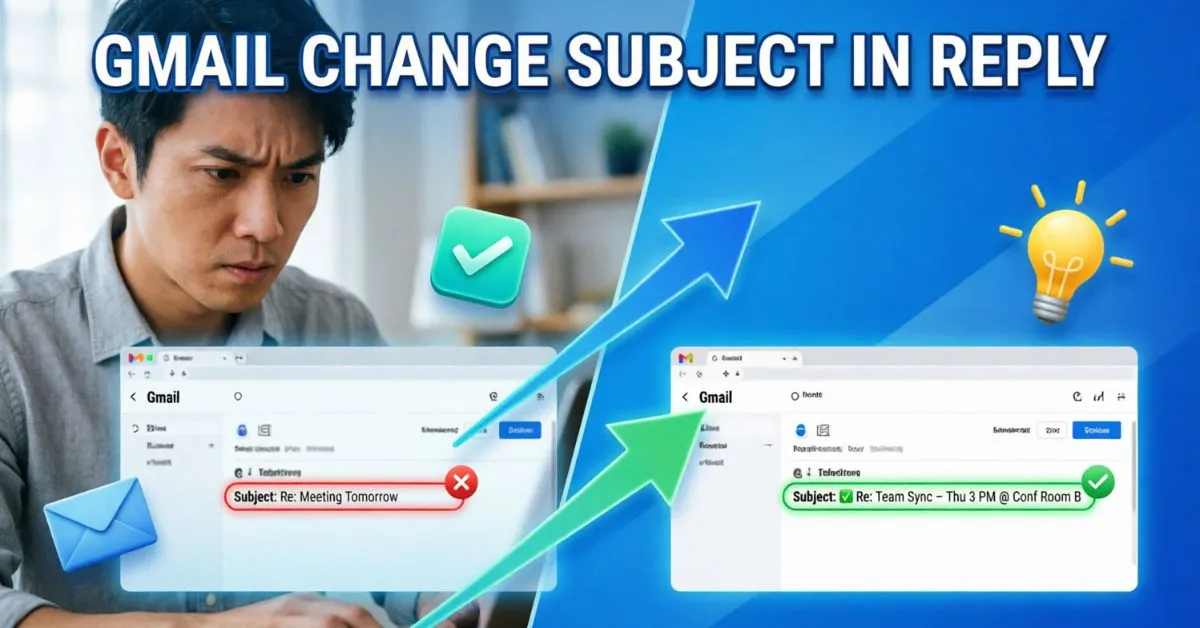
Gmail Change Subject In Reply became something I needed to learn after sending a reply to an important email thread. I thought my response would be easier to organize if I changed the subject line, but I quickly realized Gmail doesn’t make this option obvious.
I remember staring at my inbox, wondering if I would have to start a completely new email just to use a different subject.
If you’ve ever faced the same situation, I understand exactly how frustrating it can feel. I ran into this issue myself and spent some time figuring out the best way to handle it.
The good news is that there’s a simple solution once you know where to look. In this guide, I’ll show you how I changed the subject in a Gmail reply and how you can do the same in just a few easy steps.
What Does Gmail Change Subject In Reply Mean?
A gmail change subject in reply refers to editing the email subject line while responding to an existing email thread.
Normally, Gmail keeps the original subject line and adds “Re:” automatically. However, there are situations where changing the subject is helpful.
For example:
- The conversation topic has changed.
- A project enters a new phase.
- You need to start a fresh discussion.
- The original subject is unclear.
- You want better email organization.
Changing the subject line creates a new conversation thread in most cases, helping recipients identify the new topic quickly.
Why Change The Subject Line In Gmail Replies?
Better Email Organization
A clear subject line helps everyone find emails faster.
Improved Communication
Recipients instantly understand what your email is about.
Reduced Confusion
Long email chains often drift away from the original topic.
Professional Appearance
Updated subject lines look more organized and professional.
Easier Searchability
Using accurate subject lines makes future email searches easier.
Can You Change The Subject Line When Replying In Gmail?
Yes.
Gmail allows users to edit the subject line before sending a reply. However, the option is somewhat hidden, so many users don’t realize it exists.
Whether you’re using Gmail for:
- Business emails
- Team collaboration
- Client communication
- School projects
- Personal conversations
You can easily modify the subject line when replying.
How To Change Subject Line In Gmail Reply
Follow these simple steps.
Step 1: Open the Email
Open the email you want to reply to.
Step 2: Click Reply
Select the Reply button.
Step 3: Open More Options
Click the three-dot menu in the reply window.
Step 4: Choose “Edit Subject”
Select Edit Subject from the dropdown menu.
Step 5: Change the Subject Line
A subject field will appear at the top.
Type your new subject line.
Step 6: Send the Email
Write your message and click Send.
Your email will be delivered with the updated subject.
How To Change Subject Line In Gmail Reply on Mobile
The Gmail mobile app has limited subject-editing options compared to desktop.
Android & iPhone Method
- Open Gmail.
- Open the email thread.
- Tap the three dots.
- Select Forward.
- Edit the subject line.
- Remove unnecessary forwarded content.
- Send your message.
If direct subject editing isn’t available, composing a new email may be the easiest solution.
When Should You Change the Subject Line?
Not every reply needs a new subject.
Here are situations where changing it makes sense.
New Discussion Topic
If the conversation shifts significantly, update the subject.
Example:
Original Subject:
Project Timeline
New Subject:
Project Budget Discussion
New Project Phase
Projects often move through different stages.
Example:
- Website Design
- Website Development
- Website Testing
- Website Launch
Different Audience
When adding new participants, a fresh subject provides context.
Long Email Threads
Huge email chains can become difficult to follow.
A new subject helps restart the discussion.
When You Should NOT Change The Subject
Sometimes changing the subject creates confusion.
Avoid changing it when:
- The topic remains the same.
- The discussion is ongoing.
- Team members rely on a single email thread.
- You need the conversation history connected.
Keeping the original subject helps preserve context.
Benefits of Changing Email Subject Lines
Clearer Communication
Everyone understands the email’s purpose immediately.
Improved Productivity
Less time spent searching for information.
Better Inbox Management
Organized email threads improve workflow.
Enhanced Collaboration
Teams stay aligned on specific topics.
Professional Email Etiquette
Clients and colleagues appreciate clear communication.
Best Practices For Gmail Change Subject In Reply
Keep Subject Lines Short
Aim for 6 to 10 words.
Good Example:
Marketing Campaign Budget Approval
Poor Example:
Regarding The Budget Discussion We Mentioned Last Week During The Meeting
Be Specific
Tell recipients exactly what the email covers.
Good:
Quarterly Sales Report Review
Bad:
Update
Use Action-Oriented Language
Examples:
- Approval Needed
- Review Requested
- Meeting Follow-Up
- Project Update
Avoid All Caps
Subjects in ALL CAPS can appear aggressive or spammy.
Include Important Details
Examples:
- Meeting Date
- Project Name
- Client Name
- Deadline
Examples of Effective Gmail Reply Subject Lines
Project Management
Original:
Project Update
New:
Project Update – Testing Phase Complete
Client Communication
Original:
Website Proposal
New:
Website Proposal – Final Pricing Details
Team Collaboration
Original:
Marketing Campaign
New:
Marketing Campaign – Social Media Launch Plan
Customer Support
Original:
Support Request
New:
Support Request – Account Access Resolved
Common Mistakes People Make
Using Vague Subjects
Avoid:
- Question
- Help
- Update
These provide little information.
Changing Subjects Too Often
Too many changes can break conversation flow.
Ignoring Email Context
Always consider whether recipients need previous messages.
Making Subjects Too Long
Long subjects get cut off on mobile devices.
Using Unnecessary Symbols
Avoid excessive punctuation.
Example:
URGENT!!!! PLEASE READ NOW!!!!
Gmail Subject Line Tips For Businesses
Businesses rely heavily on email communication.
A strong subject line can improve:
- Internal communication
- Client engagement
- Project tracking
- Customer support efficiency
Use Consistent Naming Formats
Example:
- Project Alpha – Design Review
- Project Alpha – Development Update
- Project Alpha – Final Approval
This keeps conversations organized.
Gmail Change Subject In Reply For Teams
Teams often work on multiple topics simultaneously.
Updating subject lines helps:
- Reduce confusion
- Separate discussions
- Improve accountability
- Enhance project management
For example, a software team may split conversations into:
- Feature Development
- Bug Fixes
- User Testing
- Product Launch
Each topic deserves its own subject line.
How Subject Lines Affect Email Productivity
Research consistently shows that email organization plays a major role in workplace productivity.
Professionals receive dozens or even hundreds of emails daily.
Clear subject lines help:
- Locate messages faster
- Prioritize tasks
- Reduce misunderstandings
- Improve response times
A small change in your subject line strategy can save significant time over months and years.
Gmail Features That Work Well With Subject Changes
Labels
Use Gmail labels alongside updated subjects.
Filters
Automatically organize messages into folders.
Search Operators
Find emails quickly using keywords.
Stars
Mark important conversations for follow-up.
Archive Function
Keep your inbox clean while retaining access.
Combining these features creates a powerful email management system.
Featured Snippet: How Do You Change the Subject Line in a Gmail Reply?
To change the subject line in a Gmail reply:
- Open the email.
- Click Reply.
- Select the three-dot menu.
- Click Edit Subject.
- Enter the new subject.
- Write your reply.
- Send the email.
This creates a response with an updated subject line that better matches the conversation.
FAQs:
Q1. Can I change the subject line when replying in Gmail?
Yes. Gmail provides an “Edit Subject” option in the reply window that allows you to modify the email subject before sending.
Q2. Does changing the subject create a new email thread?
In many cases, yes. Gmail may treat the email as a separate conversation when the subject changes significantly.
Q3. Can I edit a Gmail subject line after sending?
No. Once an email is sent, the subject line cannot be changed.
Q4. Why can’t I find the Edit Subject option?
The option is hidden under the three-dot menu within the reply window on desktop Gmail.
Q5. Is changing the subject line considered good email etiquette?
Yes, especially when the discussion topic changes. It helps recipients understand the new focus of the conversation.
Q6. Does changing the subject affect previous emails?
No. Previous emails remain unchanged. Only the new message uses the updated subject line.
Q7. Can I change the subject in the Gmail mobile app?
Mobile options vary by device. Some users may need to use the Forward feature or compose a new email.
Conclusion:
Understanding how to perform a Gmail Change Subject In Reply can greatly improve your email communication. When conversations evolve, keeping an outdated subject line often creates confusion. By updating the subject, you make emails easier to understand, search, and organize.
If you’re managing business communications, collaborating with a team, or simply keeping your inbox organized, changing email subjects at the right time is a simple but powerful habit. Use clear, concise, and relevant subject lines to ensure every message serves its purpose effectively.

Aiden Robert, an author at ReplyyGenius.com, where I share smart conversation tips, flirty replies, and practical communication ideas to help people reply with confidence.