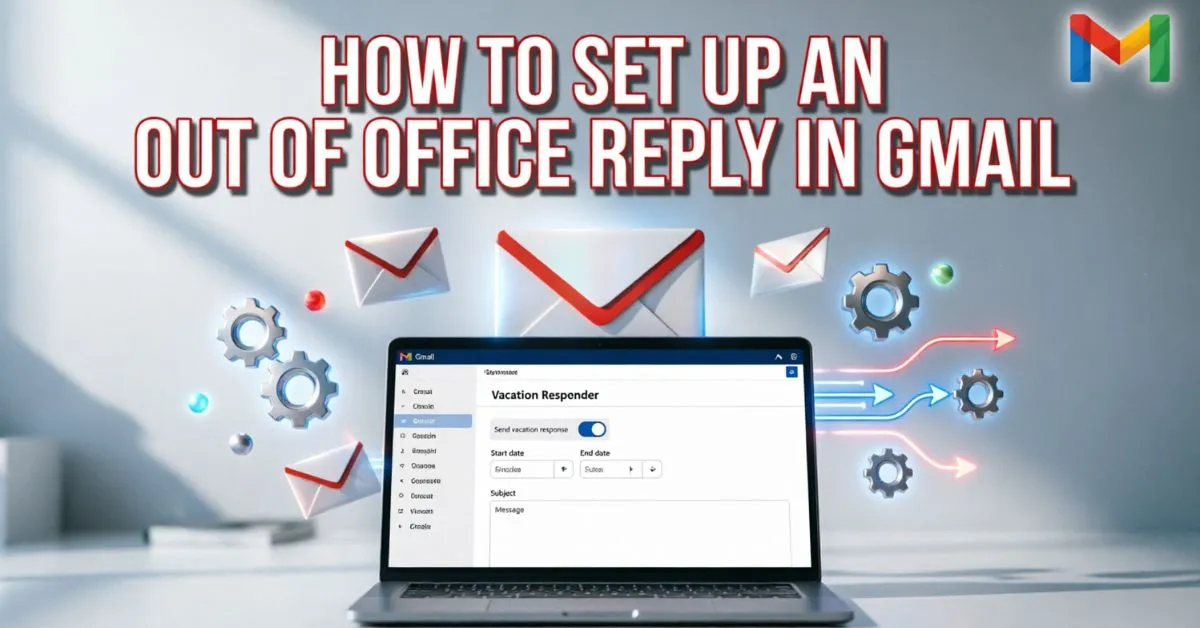
How To Set Up An Out Of Office Reply In Gmail became important to me when I returned from a short vacation and found my inbox overflowing with unanswered emails.
Clients, coworkers, and customers were waiting for replies, and a few even thought I was ignoring them. I realized I needed a simple way to let people know I was unavailable without checking my email every hour.
That’s when I discovered Gmail’s Out of Office Reply feature. I set it up in just a few minutes, and Gmail automatically sent a polite response to anyone who emailed me while I was away. It saved me time, reduced confusion, and helped me maintain a professional image.
If you’ve ever worried about missing important emails during a break, this guide will show you the exact steps I used to solve the problem.
What Is An Out of Office Reply In Gmail?
An out of office reply is an automatic email response sent to people who contact you while you are unavailable.
In Gmail, this feature is called the Vacation Responder. Once enabled, Gmail automatically sends a custom response to incoming emails during the dates you choose.
Benefits of Using Gmail Auto Replies
- Keeps senders informed
- Improves professional communication
- Reduces follow-up emails
- Helps manage customer expectations
- Saves time while away from work
- Ensures important contacts know when you’ll return
How To Set Up An Out of Office Reply In Gmail
Follow these simple steps to activate Gmail’s Vacation Responder.
Step 1: Open Gmail
Log in to your Gmail account using your browser or mobile app.
Step 2: Go to Gmail Settings
- Click the gear icon in the top-right corner.
- Select See All Settings.
Step 3: Find Vacation Responder
Scroll down until you see the Vacation Responder section.
Step 4: Turn Vacation Responder On
Select:
Vacation responder on
This enables automatic replies.
Step 5: Choose Start and End Dates
Set:
- First day of absence
- Last day (optional)
Gmail will automatically stop sending responses after the end date.
Step 6: Add a Subject Line
Examples:
- Out of Office
- Away From Email Until June 20
- On Vacation – Returning Soon
Step 7: Write Your Message
Include:
- Reason for absence
- Return date
- Alternative contact information
- Emergency contact details if necessary
Step 8: Save Changes
Click Save Changes at the bottom of the page.
Your Gmail out of office reply is now active.
How To Set Up An Out of Office Reply In Gmail App
Many people use Gmail on their phones.
For Android
- Open Gmail
- Tap the Menu icon
- Select Settings
- Choose your account
- Tap Vacation Responder
- Turn it on
- Add dates, subject, and message
- Save
For iPhone or iPad
- Open Gmail
- Tap Menu
- Open Settings
- Select your Gmail account
- Tap Vacation Responder
- Enable it
- Enter your details
- Save changes
Best Out of Office Reply Templates
Professional Template
Subject: Out of Office
Hello,
Thank you for your email. I am currently out of the office and will return on [Date].
I will have limited access to email during this time. If your matter is urgent, please contact [Name] at [Email].
Thank you for your patience.
Best regards,
[Your Name]
Vacation Template
Subject: On Vacation
Hello,
Thanks for reaching out. I am currently on vacation and will return on [Date].
So, i may not be able to respond immediately. I will reply to your message as soon as possible after my return.
Thank you.
Best,
[Your Name]
Customer Service Template
Subject: Thank You for Contacting Us
Hello,
Thank you for your message. I am currently away from the office and will return on [Date].
For immediate assistance, please contact our support team at [Support Email].
Thank you for your understanding.
What Should An Out of Office Message Include?
A good automatic email response should contain key information.
Essential Elements
Return Date:
Tell people when you’ll be available again.
Alternative Contact:
Provide another person or department for urgent matters.
Professional Tone:
Keep your message clear and polite.
Response Expectations:
Let senders know when they can expect a reply.
Common Mistakes To Avoid
Many people make simple mistakes when creating an out of office message.
Being Too Vague
Avoid:
“I’m away.”
Instead say:
“I’m away until July 15 and will respond when I return.”
Sharing Too Much Personal Information
You don’t need to explain your exact location or travel plans.
Forgetting an End Date
Without an end date, your auto reply may continue longer than intended.
Not Providing Backup Contacts
Important emails may need immediate attention.
When Should You Use An Out of Office Reply?
An out of office auto reply is useful in many situations.
Vacation
Going on holiday? Enable Gmail auto replies before leaving.
Business Travel
Inform clients and coworkers that responses may be delayed.
Medical Leave
Keep communication professional while focusing on recovery.
Maternity or Paternity Leave
Let contacts know you’ll be unavailable for an extended period.
Public Holidays
Many businesses use automatic replies during holiday closures.
Gmail Out of Office Reply Best Practices
Keep It Short
Most effective messages are under 100 words.
Use Clear Language
Simple language improves understanding.
Include Alternative Support
Help urgent contacts find assistance quickly.
Test Before Leaving
Send yourself a test email to confirm everything works properly.
Update Your Signature
Consider adding temporary contact information to your email signature.
Gmail Out of Office Reply for Work vs Personal Use
Work Accounts
Work emails should be:
- Professional
- Informative
- Clear about response times
Personal Accounts
Personal auto replies can be:
- Friendly
- Casual
- Shorter
Example:
“Thanks for your email! I’m currently away and will respond when I return next week.”
Can Gmail Send Automatic Replies to Everyone?
Yes, but Gmail offers options.
You can choose whether your vacation responder sends messages to:
- Everyone who emails you
- Only people in your contacts
- Internal company contacts (Google Workspace)
This flexibility helps prevent unnecessary auto replies.
Troubleshooting Gmail Vacation Responder Issues
Auto Reply Not Working
Check:
- Vacation Responder is enabled
- Start date is correct
- Gmail account is active
Message Not Sending to Everyone
Gmail typically sends one automatic reply per sender every few days.
This prevents inbox clutter and repetitive responses.
Wrong Dates
Review your start and end dates carefully before saving.
Why Out of Office Replies Matter
According to workplace communication studies, clear communication improves customer satisfaction and reduces frustration when response times are delayed.
When people know why you’re unavailable and when you’ll return, they are more likely to wait patiently instead of sending multiple follow-up emails.
An effective Gmail out of office reply helps maintain professionalism, trust, and strong relationships with customers, clients, and colleagues.
FAQs:
Q1: How do I set up an out of office reply in Gmail?
Go to Gmail Settings, find Vacation Responder, turn it on, choose your dates, write your message, and save changes.
Q2: Does Gmail automatically stop the vacation responder?
Yes. If you set an end date, Gmail automatically disables the responder after that date.
Q3: Can I set up an out of office reply on my phone?
Yes. The Gmail mobile app for Android and iPhone supports Vacation Responder settings.
Q4: Can I customize my Gmail auto reply message?
Absolutely. You can write your own subject line and personalized message.
Q5: Will Gmail send multiple replies to the same person?
Generally, Gmail sends one automatic response to a sender every few days to reduce spam and repetition.
Q6: Can I send out of office replies only to contacts?
Yes. Gmail allows you to limit automatic replies to people in your contacts list.
Q7: Is Gmail Vacation Responder free?
Yes. The feature is included with all standard Gmail accounts.
Conclusion:
Learning How To Set Up An Out Of Office Reply In Gmail is one of the easiest ways to maintain professional communication while you’re away from your inbox. If you’re on vacation, traveling for business, taking medical leave, or enjoying a holiday break, Gmail’s Vacation Responder ensures that everyone who contacts you receives a timely and helpful response.
By setting clear expectations, providing alternative contacts, and using a professional message, you can reduce stress, improve customer satisfaction, and return to a more organized inbox.
Don’t wait until you’re already away. Take a few minutes today to configure your Gmail out of office reply and enjoy peace of mind knowing your email communication is handled automatically.