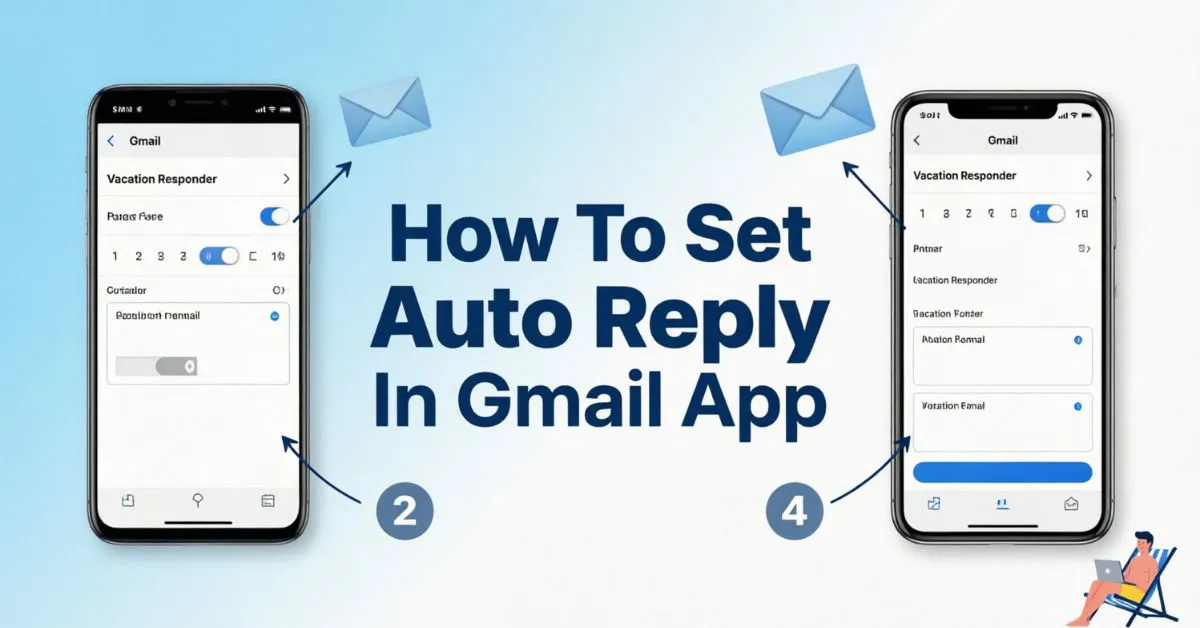
How To Set Auto Reply In Gmail App became important to me when I was preparing for a busy weekend away from work. As I knew emails would keep coming in, but I wouldn’t have time to respond to everyone.
I didn’t want clients, coworkers, or friends to think I was ignoring their messages. I started searching for a quick solution and discovered that the Gmail app has a built-in auto reply feature.
Within a few minutes, I set up an automatic response that let people know I was unavailable and when they could expect a reply. It was simple, effective, and gave me peace of mind while I was away.
If you’re facing the same problem, don’t worry. In this guide, I’ll show you exactly how to set up an auto reply in the Gmail app so you can stay professional and keep your contacts informed.
What Is An Auto Reply In Gmail?
An auto reply is an automated email response sent when someone emails you. Gmail’s built-in feature allows you to create a custom message that is automatically delivered to incoming email senders.
Benefits of Using Gmail Auto Reply
- Saves time
- Keeps contacts informed
- Improves communication
- Creates a professional image
- Reduces follow-up emails
- Helps during vacations and holidays
Many businesses use email autoresponders because they improve customer satisfaction and response expectations.
How To Set Auto Reply In Gmail App
Setting up an automatic response in Gmail takes only a few minutes.
On Android Devices
Follow these steps:
- Open the Gmail app.
- Tap the menu icon (☰) in the top-left corner.
- Scroll down and tap Settings.
- Select the Gmail account you want to use.
- Tap Vacation responder.
- Turn the feature On.
- Choose a start date.
- Choose an end date (optional).
- Enter a subject line.
- Type your auto reply message.
- Tap Done or Save.
Your Gmail auto responder is now active.
On iPhone or iPad
The process is nearly identical:
- Open Gmail app.
- Tap the menu icon.
- Select Settings.
- Choose your Gmail account.
- Tap Vacation responder.
- Switch it on.
- Enter dates.
- Add a subject.
- Write your message.
- Save your settings.
Now Gmail will automatically respond to incoming emails.
Quick Answer (Featured Snippet)
How do I set auto reply in Gmail app?
- Open Gmail app.
- Go to Settings.
- Select your email account.
- Tap Vacation Responder.
- Turn it on.
- Enter dates, subject, and message.
- Save changes.
Gmail will automatically send replies during your selected period.
Why Use The Gmail Vacation Responder?
The Gmail vacation responder helps users maintain communication even when unavailable.
Common Situations
Vacation
Let people know you’re away and when you’ll return.
Business Travel
Inform clients and colleagues of delayed responses.
Holidays
Set expectations during holiday breaks.
Medical Leave
Provide alternative contacts if needed.
Busy Work Periods
Reduce repeated follow-up emails.
Best Auto Reply Message Examples
Professional Auto Reply
Subject: Out of Office
Hello,
Thank you for your email. I am currently out of the office and will return on January 10. I will respond as soon as possible upon my return.
Thank you for your patience.
Best regards
Subject: Vacation Notice
Vacation Auto Reply
Hello,
I am currently on vacation and have limited access to email. I will return on July 20 and respond shortly after.
Thank you.
Customer Support Auto Reply
Subject: We Received Your Message
Hello,
Thank you for contacting us. Your message has been received. Our team will review your request and respond within 24–48 hours.
Best regards
Tips For Writing An Effective Gmail Auto Reply
A good auto reply should be clear and helpful.
Include Key Information
Mention:
- Why you’re unavailable
- Return date
- Expected response time
- Alternative contact person
Keep It Short
Long messages often go unread.
Use Professional Language
Remain polite and friendly.
Avoid Oversharing
Do not provide unnecessary personal information.
Advanced Gmail Auto Reply Tips
If you want better email management, consider these strategies.
Use Clear Subject Lines
Examples:
- Out of Office
- Vacation Response
- Temporary Email Delay
- Automatic Reply
Mention Alternative Contacts
Example:
“For urgent matters, please contact Sarah at support@example.com.”
Set Accurate Dates
Always verify your start and end dates before activating the responder.
Gmail Auto Reply For Business Owners
Business owners can benefit greatly from email automation.
Benefits
- Improves customer experience
- Reduces support requests
- Sets expectations
- Increases professionalism
According to customer service studies, people are more satisfied when they receive immediate acknowledgment of their messages, even if the final response comes later.
Common Problems & Fixes
Auto Reply Not Sending
Try these solutions:
- Check internet connection
- Verify Gmail account settings
- Confirm Vacation Responder is enabled
- Update the Gmail app
- Restart your device
Auto Reply Stops Early
Check:
- End date settings
- Account synchronization
- Gmail app updates
Multiple Gmail Accounts
If you use several Gmail accounts:
- Open Settings.
- Select the correct account.
- Configure auto replies individually.
Each account requires separate settings.
Gmail Auto Reply vs Email Filters
Many users confuse auto replies with email filters.
Gmail Auto Reply
- Sends automatic responses
- Best for vacations and leave periods
- Easy to configure
Gmail Filters
- Organize incoming emails
- Move messages automatically
- Apply labels and categories
Using both together can improve email productivity.
Security Considerations
When setting up an automatic response:
Do
- Keep messages professional
- Mention return dates
- Use business-appropriate language
Don’t
- Share travel locations
- Reveal personal details
- Disclose sensitive company information
Cybersecurity experts recommend limiting personal information in automatic responses.
How To Turn Off Auto Reply In Gmail App
When you return:
- Open Gmail app.
- Go to Settings.
- Select your Gmail account.
- Tap Vacation Responder.
- Turn it Off.
- Save changes.
The automatic replies will stop immediately.
Gmail Auto Reply Best Practices For 2026
To maximize effectiveness:
Follow These Rules
- Keep responses short
- Include return date
- Offer alternative contact information
- Use professional language
- Test before leaving
- Update when plans change
- These practices help maintain trust and improve communication.
FAQs:
Q1. How do I set auto reply in Gmail app?
Open Gmail app, go to Settings, choose your account, select Vacation Responder, turn it on, add your message, and save.
Q2. Is Gmail auto reply available on Android and iPhone?
Yes. Gmail offers the Vacation Responder feature on both Android and iOS devices.
Q3. Can I schedule Gmail auto replies?
Yes. Gmail allows you to choose start and end dates for automatic responses.
Q4. Will Gmail send auto replies to everyone?
By default, Gmail sends responses to incoming email senders. Some settings may limit responses to contacts only.
Q5. Can I edit my auto reply message later?
Yes. Simply return to Vacation Responder settings and update the message.
Q6. Is Gmail auto reply free?
Yes. The Vacation Responder feature is included free with Gmail accounts.
Q7. Can I use auto reply for business emails?
Absolutely. Many professionals and businesses use Gmail auto replies to manage customer communication.
Q8. How do I stop Gmail auto replies?
Turn off the Vacation Responder in Gmail settings and save the changes.
Conclusion:
Learning How To Set Auto Reply In Gmail App is one of the easiest ways to improve email communication. If you’re on vacation, traveling for work, managing a busy schedule, or simply taking a break, Gmail’s Vacation Responder ensures that people receive an immediate response.
The setup process takes only a few minutes on both Android and iPhone. By using clear messaging, accurate dates, and professional language, you can maintain strong communication while saving time and reducing stress.

Aiden Robert, an author at ReplyyGenius.com, where I share smart conversation tips, flirty replies, and practical communication ideas to help people reply with confidence.