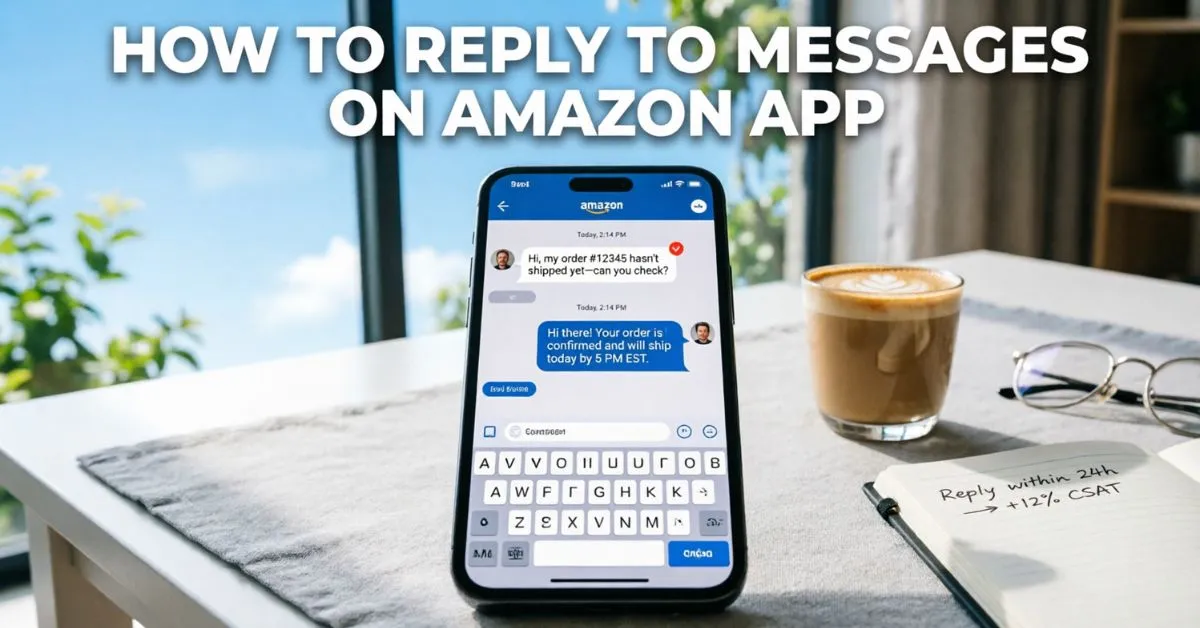
How To Reply To Messages on Amazon App was something I struggled with when I first started using Amazon as a buyer and seller. I remember opening the app one day and seeing several unread messages.
I wasn’t sure where to find them or how to reply professionally. For a moment, I worried that a delayed response might affect customer satisfaction or cause me to miss important information.
After spending some time exploring the app, I learned the correct way to view and respond to Amazon messages quickly and effectively. Since then, replying to customers, sellers, and support messages has become a simple part of my daily routine.
If you’ve ever felt confused about Amazon messaging like I did, don’t worry. In this guide, I’ll show you exactly how to reply to messages on the Amazon App step by step, making the process fast, easy, and stress-free.
Quick Answer: How To Reply To Messages on Amazon App
If you’re looking for a quick solution, follow these steps:
- Open the Amazon App.
- Sign in to your account.
- Tap the menu icon.
- Go to Your Account.
- Open Message Center or Buyer-Seller Messages.
- Select the conversation you want to answer.
- Tap the reply box.
- Type your message.
- Press Send.
That’s it. Your reply will be delivered through Amazon’s secure messaging system.
Understanding Amazon’s Messaging System
Amazon provides a secure communication platform for buyers and sellers.
Why Amazon Uses Internal Messaging
The Amazon messaging system helps:
- Protect customer privacy
- Prevent spam
- Keep records of conversations
- Improve customer service
- Resolve order-related issues faster
Instead of sharing personal email addresses or phone numbers, all communication happens within Amazon’s platform.
Common Reasons People Send Amazon Messages
Users typically exchange messages for:
- Order updates
- Shipping information
- Product questions
- Return requests
- Refund discussions
- Delivery issues
- Product customization requests
Understanding these common scenarios helps you respond appropriately.
How To Find Messages on The Amazon App
Before replying, you need to locate your messages.
Step 1: Open The Amazon App
Launch the Amazon mobile application on your Android or iPhone device.
Make sure you’re signed into the correct account.
Step 2: Access Your Account
Tap the profile icon or menu button located at the bottom or top corner of the app.
Select Your Account.
Step 3: Open Message Center
Scroll until you find:
- Message Center
- Buyer-Seller Messaging
- Your Messages
The exact location may vary depending on app updates.
Step 4: Select The Conversation
Tap the message thread you wish to reply to.
The conversation history will appear on your screen.
Step-by-Step Guide To Replying To Amazon Messages
Open The Message Thread
After finding the conversation, open it by tapping on the message.
Review previous messages before replying.
Read The Entire Conversation
Reading the full thread helps you:
- Understand the issue
- Avoid duplicate responses
- Provide accurate information
- Respond professionally
Type Your Reply
Tap inside the text box.
Write your response clearly and politely.
Example:
Hello, thank you for contacting me. I received the package and everything looks good. Thank you for the update.
Review Before Sending
Check:
- Grammar
- Accuracy
- Order details
- Tone
A quick review prevents mistakes.
Send the Message
Tap the Send button.
Amazon will deliver your response securely.
How Sellers Reply To Customer Messages on Amazon App
Amazon sellers receive customer inquiries regularly.
Best Practices For Sellers
Sellers should:
- Respond within 24 hours
- Use professional language
- Address customer concerns directly
- Provide accurate information
- Stay compliant with Amazon policies
Example Seller Response
Customer Question:
“When will my package arrive?”
Professional Reply:
“Hello, thank you for reaching out. According to the latest tracking information, your package is expected to arrive within the next two business days. Please let us know if you need further assistance.”
Fast responses often lead to higher customer satisfaction.
How Buyers Should Respond To Sellers
Buyers can improve communication by being clear and specific.
Include Relevant Details
Mention:
- Order number (when appropriate)
- Product name
- Issue description
- Desired resolution
Example Buyer Reply
“Hello, I received the item today. Unfortunately, one piece appears damaged. Could you please advise on the next steps for a replacement?”
Clear communication helps sellers solve problems faster.
Common Amazon Message Types & How to Reply
Order Confirmation Messages
Simply acknowledge the information.
Example:
“Thank you for the update. I appreciate the confirmation.”
Shipping Update Messages
Example:
“Thanks for sharing the tracking information.”
Return & Refund Messages
Example:
“Thank you for your response. I understand the return process and will follow the instructions provided.”
Product Question Messages
Example:
“Thank you for the information. That answers my question.”
Tips For Writing Professional Amazon Replies
Good communication builds trust.
Keep Messages Short
Long messages can be confusing.
Focus on the main point.
Be Polite
Use phrases like:
- Thank you
- Please
- I appreciate your help
- Kindly assist
Stay Professional
Avoid:
- Angry language
- Personal attacks
- Excessive capitalization
- Emotional responses
Be Specific
Instead of saying:
My order has a problem.
Say:
My order arrived with a damaged charging cable.
Specific details help resolve issues faster.
Amazon Messaging Rules You Should Know
Amazon has strict communication policies.
What Is Allowed
You may discuss:
- Orders
- Products
- Shipping
- Returns
- Refunds
- Customer support
What Is Not Allowed
Avoid:
- Sharing personal email addresses
- Requesting phone numbers
- Sending promotional content
- Asking for positive reviews
- Offering incentives for reviews
Violating Amazon policies can result in account restrictions.
Troubleshooting: Can’t Reply to Amazon Messages?
Sometimes users experience issues.
Message Option Missing
Possible causes:
- Conversation is closed
- App needs updating
- Account issue
- Temporary system problem
Fixes To Try
Update the Amazon App
Install the latest version.
Restart the App
Close and reopen the application.
Check Internet Connection
A weak connection may prevent messages from sending.
Sign Out and Back In
Refreshing your session often solves temporary issues.
Contact Amazon Support
If problems continue, contact Amazon customer service.
How To Reply Faster on Amazon App
If you receive frequent messages, these tips can help.
Enable Notifications
Push notifications ensure you never miss a message.
Check Messages Daily
Regular monitoring reduces response delays.
Use Templates
For common situations, prepare standard responses.
Example:
“Thank you for contacting us. We have received your message and will provide an update shortly.”
Keep Order Information Ready
Having order details available speeds up communication.
Benefits of Responding Quickly To Amazon Messages
Fast communication offers many advantages.
For Buyers
- Faster problem resolution
- Better customer support
- Improved shopping experience
For Sellers
- Higher customer satisfaction
- Better seller metrics
- Increased trust
- More repeat customers
According to customer service studies, many online shoppers expect responses within 24 hours. Quick communication often leads to better customer experiences and stronger business relationships.
Common Mistakes To Avoid
Ignoring Messages
Unanswered messages can delay solutions.
Being Too Emotional
Stay calm and professional.
Sending Incomplete Information
Provide necessary details from the beginning.
Not Reviewing Messages
Always double-check before sending.
Violating Amazon Policies
Follow Amazon communication guidelines at all times.
Amazon Message Reply Examples
Example 1: Delivery Inquiry
“Hello, thank you for your message. I appreciate the update regarding my shipment.”
Example 2: Return Request
“Thank you for your assistance. I would like to proceed with the return process.”
Example 3: Product Question
“Thank you for the clarification. The information was very helpful.”
Example 4: Damaged Item
“Hello, I received the product today, but it arrived damaged. Could you please advise on replacement options?”
Featured Snippet: How Do You Reply To Messages on Amazon App?
To reply to messages on the Amazon app:
- Open Amazon App.
- Sign in to your account.
- Go to Your Account.
- Open Message Center.
- Select the conversation.
- Type your response.
- Tap Send.
Your message will be delivered through Amazon’s secure buyer-seller messaging system.
FAQs:
Q1: Where can I find Amazon messages on the app?
You can find messages by opening the Amazon app, navigating to Your Account, and selecting Message Center or Buyer-Seller Messaging.
Q2: Can I reply to sellers directly through Amazon?
Yes. Amazon allows buyers to communicate directly with sellers through its secure messaging platform.
Q3: Why can’t I reply to an Amazon message?
Possible reasons include app issues, a closed conversation, account restrictions, or an outdated app version.
Q4: Does Amazon notify sellers when I reply?
Yes. Sellers typically receive notifications when a new message arrives.
Q5: Can I send photos through Amazon messages?
In some cases, Amazon may allow attachments depending on the situation and account type.
Q6: How fast should sellers reply to messages?
Amazon generally expects sellers to respond within 24 hours to maintain good customer service standards.
Q7: Is Amazon messaging secure?
Yes. Amazon’s messaging system helps protect personal information and keeps communication within the platform.
Q8: Can buyers and sellers exchange phone numbers?
Amazon generally discourages sharing personal contact information unless necessary for order fulfillment.
Conclusion:
Learning How To Reply To Messages on Amazon App is an important skill for both buyers and sellers. If you’re asking about an order, responding to a shipping update, discussing a refund, or solving a product issue, Amazon’s messaging system makes communication secure and simple.
The key is to stay professional, respond promptly, provide clear information, and follow Amazon’s communication policies. By doing so, you’ll avoid misunderstandings and resolve issues much faster.
A well-written reply can improve customer satisfaction, strengthen trust, and create a smoother Amazon experience for everyone involved.

Aiden Robert, an author at ReplyyGenius.com, where I share smart conversation tips, flirty replies, and practical communication ideas to help people reply with confidence.