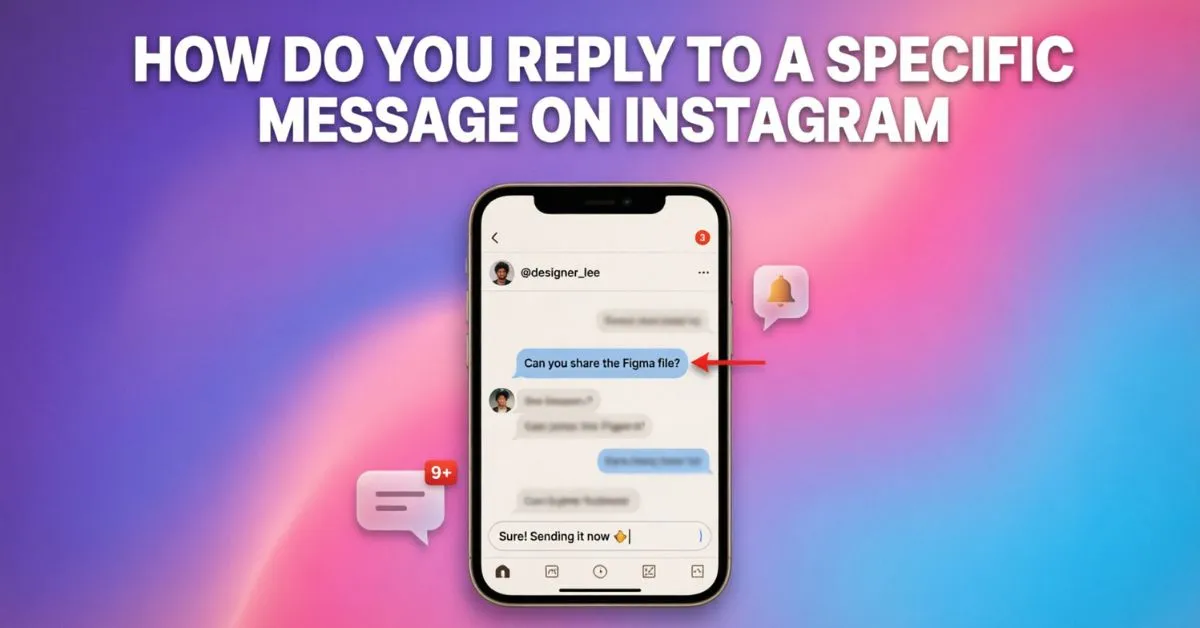
How Do You Reply To A Specific Message on Instagram? I asked myself this exact question when I got stuck in a busy Instagram conversation. Messages were coming in one after another, and I accidentally replied to the wrong text.
Instead of making things clear, I ended up creating even more confusion in the chat. I knew there had to be a better way to keep conversations organized. After exploring Instagram’s messaging features, I discovered how to reply directly to a specific message.
It instantly made my chats easier to follow and helped everyone understand exactly what I was responding to. If you’re facing the same issue, don’t worry.
In this guide, I’ll show you the simple steps I used to reply to individual messages and keep every Instagram conversation clear, organized, and easy to manage.
What Does Replying To A Specific Message On Instagram Mean?
Replying to a specific message means selecting one message in a conversation and responding directly to it.
Instead of sending a general reply, Instagram attaches your response to the original message. This helps everyone understand exactly what you’re talking about.
Example
Imagine someone sends:
- What time is the meeting?
- Did you finish the report?
- Can you call me later?
Instead of sending one confusing response, you can reply directly to each message:
- Reply to “What time is the meeting?” → “3 PM.”
- Reply to “Did you finish the report?” → “Yes.”
- Reply to “Can you call me later?” → “Sure.”
This creates a cleaner conversation.
How Do You Reply To A Specific Message On Instagram?
Step 1: Open Instagram
Launch the Instagram app on your phone.
Step 2: Go to Direct Messages
Tap the Messenger icon in the top-right corner.
Step 3: Open the Conversation
Select the chat containing the message you want to reply to.
Step 4: Find the Message
Scroll until you locate the specific message.
Step 5: Swipe Right on the Message
Gently swipe right on the message.
A reply box will appear.
Step 6: Type Your Response
Enter your reply in the text field.
Step 7: Send the Message
Tap the Send button.
Your response will now appear linked to the original message.
Alternative Method To Reply To A Specific Message
If swiping doesn’t work, try this method.
Long Press The Message
- Tap and hold the message.
- Select “Reply.”
- Type your response.
- Tap Send.
This method works well on most Instagram versions.
How To Reply To A Specific Message On Instagram on iPhone
If you’re using an iPhone, the process is simple.
Steps For iPhone Users
- Open Instagram.
- Go to Messages.
- Open a chat.
- Swipe right on the message.
- Type your reply.
- Send it.
Make sure your Instagram app is updated to access all messaging features.
How To Reply To A Specific Message On Instagram On Android
Android users can use the same process.
Steps For Android Users
- Open Instagram.
- Navigate to Direct Messages.
- Open the desired conversation.
- Swipe right on the message.
- Enter your reply.
- Tap Send.
Most Android devices support this feature.
How To Reply To A Specific Instagram Message On Desktop
Instagram also allows message replies from a computer.
Steps
- Visit Instagram.com.
- Log into your account.
- Click Messages.
- Open a conversation.
- Hover over a message.
- Click the three-dot menu.
- Select Reply.
- Type your response.
- Press Send.
This is useful for business users and content creators who manage Instagram from a desktop.
Why Use Instagram’s Reply Feature?
The reply feature offers many benefits.
Better Organization
Conversations stay clear and easy to follow.
Reduced Confusion
People instantly know which message you’re answering.
Faster Communication
Questions get answered more efficiently.
Professional Messaging
Businesses can provide better customer support.
Improved Group Chats
Replying helps separate different topics in busy conversations.
Common Reasons The Reply Feature Is Missing
Sometimes users cannot find the reply option.
Here are common causes.
Outdated Instagram App
Older versions may not support message replies.
Fix:
Update Instagram through your app store.
Messenger Update Not Enabled
Instagram messaging features require Messenger integration.
Fix:
Update Instagram messaging settings if available.
Temporary App Glitch
Apps occasionally experience bugs.
Fix:
- Restart Instagram
- Clear cache
- Restart your device
Region Restrictions
Some features roll out gradually across countries.
Fix:
Wait for future updates.
How To Update Instagram
Keeping Instagram updated ensures you receive the latest messaging features.
On iPhone
- Open App Store.
- Search Instagram.
- Tap Update.
On Android
- Open Google Play Store.
- Search Instagram.
- Tap Update.
Regular updates improve security and performance.
Instagram Reply Feature For Business Accounts
Businesses benefit greatly from message replies.
Customer Support
Agents can answer customer questions clearly.
Faster Problem Resolution
Specific replies reduce misunderstandings.
Better Customer Experience
Customers appreciate organized communication.
Example
Customer: “Do you offer free shipping?”
Business Reply: “Yes, free shipping is available on orders over $50.”
This creates a professional interaction.
Best Practices When Replying To Instagram Messages
Follow these tips to improve communication.
Be Clear
Answer questions directly.
Respond Quickly
Fast replies increase engagement.
Stay Polite
Friendly communication builds trust.
Use Emojis Carefully
Emojis can add personality but avoid overusing them.
Double-Check Before Sending
Make sure you’re replying to the correct message.
Instagram Messaging Tips For Better Conversations
Use Quick Reactions
React with:
- ❤️ Heart
- 👍 Thumbs Up
- 😂 Laughing Face
- 😮 Surprise
Pin Important Chats
Keep key conversations at the top.
Mute Noisy Conversations
Reduce distractions without leaving chats.
Use Voice Messages
Voice notes can save time.
Share Content Directly
Send posts, reels, and stories within chats.
Common Mistakes To Avoid
Many users make these errors.
Replying to the Wrong Message
Always verify the selected message.
Sending Incomplete Responses
Provide enough context.
Ignoring Important Questions
Address all concerns clearly.
Using Generic Replies
Specific responses improve understanding.
Troubleshooting Instagram Message Reply Problems
If the feature isn’t working, try these solutions.
Log Out and Back In
Refreshing your account often fixes issues.
Clear App Cache
Android users can clear cached data.
Reinstall Instagram
A fresh installation may resolve bugs.
Check Internet Connection
Weak connections can affect messaging features.
Contact Instagram Support
For persistent issues, reach out to support.
Benefits of Using Message Replies In Group Chats
Group conversations can become chaotic.
Using message replies helps:
- Keep discussions organized
- Avoid misunderstandings
- Track conversations easily
- Improve communication
- Manage multiple topics simultaneously
This is especially helpful in family groups, work chats, and event planning conversations.
The Future of Instagram Messaging
Instagram continues improving its messaging platform.
Recent updates have introduced:
- Message reactions
- Voice messages
- Cross-platform messaging
- Enhanced chat controls
- Improved business communication tools
Experts expect even more advanced messaging features in the coming years.
FAQs:
Q1. How do you reply to a specific message on Instagram?
Swipe right on the message or tap and hold it, select Reply, type your response, and send it.
Q2. Why can’t I reply to a specific Instagram message?
You may be using an outdated version of Instagram or experiencing a temporary app issue.
Q3. Can I reply to a specific message on Instagram from a computer?
Yes. Open Instagram on your desktop browser, select a conversation, choose Reply, and send your response.
Q4. Does the reply feature work in group chats?
Yes. Instagram allows replies to specific messages in both private and group conversations.
Q5. Is the reply feature available on Android and iPhone?
Yes. Both Android and iPhone devices support Instagram’s message reply feature.
Q6. How do I update Instagram to get the reply feature?
Visit the App Store or Google Play Store and install the latest Instagram update.
Conclusion:
Learning How Do You Reply To A Specific Message On Instagram is one of the easiest ways to improve your messaging experience. If you’re chatting with friends, managing a business account, or participating in group discussions, this feature helps keep conversations organized and easy to understand.
By simply swiping right or using the reply option, you can connect your response directly to a message and avoid confusion. If the feature isn’t available, updating Instagram or troubleshooting common issues usually solves the problem.
The next time your Instagram inbox becomes busy, use message replies to keep every conversation clear, professional, and efficient.

Eric Walker, an author at replyygenius.com, where I create clear and helpful content for readers.
I focus on writing useful, engaging, and easy to understand articles that deliver real value.