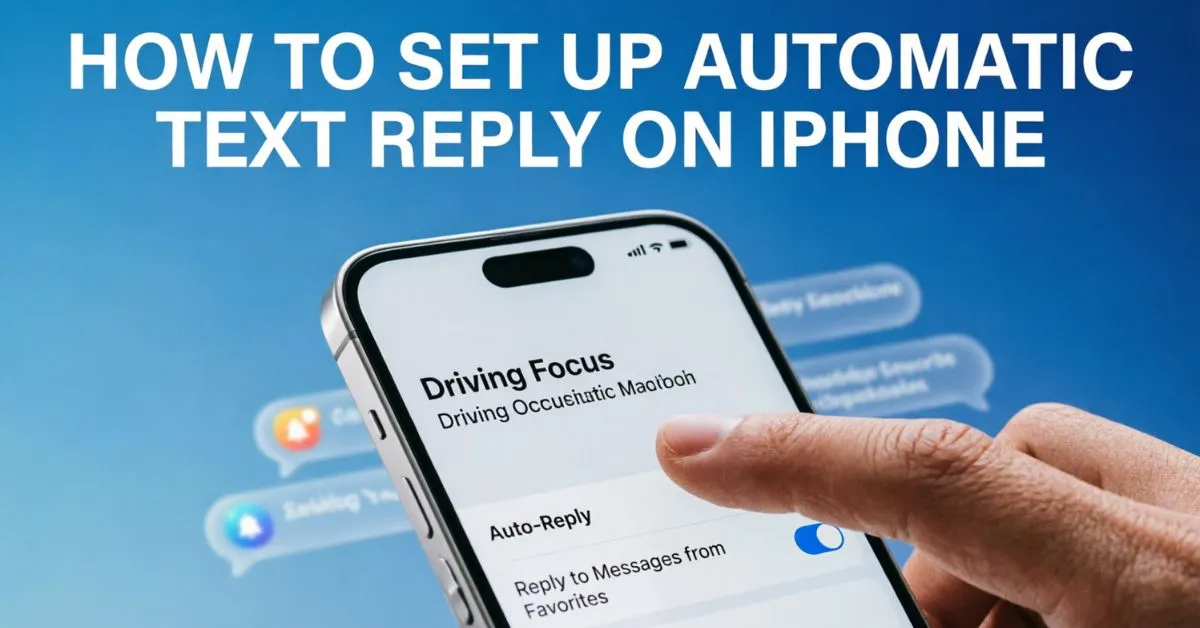
How To Set Up Automatic Text Reply On iPhone was something I desperately searched for when I kept missing important messages and couldn’t respond right away.
I remember feeling frustrated because friends, family, and even work contacts expected quick replies, while I was often busy driving, attending meetings, or handling daily tasks. If you’ve ever been in the same situation, I completely understand how annoying it can be.
I knew there had to be an easier solution, so I started looking for a way to let people know I was unavailable without manually replying every time. That’s when I discovered how to set up automatic text reply on iPhone.
Once I enabled it, my phone automatically sent responses whenever I couldn’t answer, keeping everyone informed and reducing misunderstandings. It made communication much smoother and saved me a lot of time. If you want the same convenience, I’ll show you exactly how I set it up and how you can do it too.
What Is An Automatic Text Reply on iPhone?
An automatic text reply is a message that your iPhone sends automatically when someone texts you and you’re unavailable.
Common examples include:
- Driving
- Working
- Sleeping
- Attending meetings
- Traveling
- Taking personal time
Instead of leaving people waiting, an auto-reply lets them know you’ll respond later.
Example:
“I’m currently unavailable and may not see your message right away. I’ll get back to you as soon as possible.”
Why Use Automatic Text Replies?
There are many reasons why iPhone users enable auto-replies.
Benefits of Auto Reply Messages
Save Time
You don’t have to manually respond to every incoming message.
Improve Communication
People know you’ve received their message.
Reduce Distractions
Focus on work, family, or important tasks without interruptions.
Stay Safe While Driving
Automatic replies can prevent texting while driving.
Maintain Professionalism
Clients and coworkers appreciate clear communication.
Can iPhone Automatically Reply To Text Messages?
Yes, but there is an important detail.
Unlike some business messaging platforms, iPhones do not offer a universal auto-reply feature for every text message.
However, Apple provides automatic replies through:
- Driving Focus
- Focus Modes
- Shortcuts Automation
- Third-party auto-reply apps
The most common method is using Driving Focus.
How To Set Up Automatic Text Reply On iPhone Using Driving Focus
This is the easiest and most reliable method.
Step 1: Open Settings
- Open Settings
- Tap Focus
- Select Driving
Step 2: Enable Driving Focus
You can activate Driving Focus in several ways:
- Automatically
- When connected to Bluetooth
- Manually
- When driving is detected
Choose the option that fits your lifestyle.
Step 3: Customize Auto Reply
Inside Driving Focus:
- Tap Auto-Reply
- Enter your preferred message
Example:
“I’m driving right now and can’t respond. I’ll reply when I reach my destination safely.”
Step 4: Choose Who Receives Auto Replies
Under Auto-Reply To, select:
- No One
- Recents
- Favorites
- All Contacts
Many users choose Favorites or All Contacts.
Step 5: Test the Feature
Ask a friend to send you a message while Driving Focus is active.
Your custom automatic reply should be sent automatically.
How To Set Up Auto Reply Using Focus Mode
Focus Mode gives you more control over notifications and availability.
Create A Custom Focus
- Open Settings
- Tap Focus
- Tap the + icon
- Select Custom
Name your Focus mode:
- Work
- Vacation
- Study
- Sleep
- Personal Time
Configure Notifications
Choose:
- Allowed contacts
- Allowed apps
- Silence settings
This helps reduce interruptions while keeping important alerts available.
Share Focus Status
Turn on:
Share Focus Status
When enabled, people using iMessage will see that notifications are silenced.
This isn’t a true auto-reply, but it informs others that you’re unavailable.
How To Create Automatic Text Replies Using the Shortcuts App
The Shortcuts app offers more flexibility.
Step 1: Open Shortcuts
- Launch Shortcuts
- Select Automation
- Tap Create Personal Automation
Step 2: Choose a Trigger
Examples:
- Time of day
- Arriving at a location
- Leaving a location
- Connecting to Wi-Fi
- Activating Focus Mode
Step 3: Add Send Message Action
- Tap Add Action
- Search for Send Message
- Enter your auto-reply text
Example:
“I’m currently busy and will respond as soon as possible.”
Step 4: Select Recipients
Choose specific contacts if needed.
Step 5: Disable Confirmation Requests
Turn off:
Ask Before Running
This allows the automation to work automatically.
Best Auto Reply Message Examples
Here are some ready-to-use automatic text replies.
Professional Auto Reply
“Thank you for your message. I’m currently unavailable but will respond as soon as possible.”
Driving Auto Reply
“I’m driving and can’t reply right now. I’ll get back to you when it’s safe.”
Vacation Auto Reply
“I’m currently away and may have limited access to my phone. I’ll respond when I return.”
Meeting Auto Reply
“I’m in a meeting right now. I’ll reply as soon as I’m available.”
Personal Time Auto Reply
“I’m taking some personal time away from my phone. I’ll get back to you soon.”
Third Party Apps For Automatic Text Replies
Some users need more advanced automation than Apple provides.
Popular options include:
- Auto Reply Text Message Apps
- Business messaging tools
- CRM communication apps
- Customer support platforms
These solutions often provide:
- Custom schedules
- Contact groups
- Multiple auto-reply templates
- Advanced automation rules
However, always review privacy settings before granting message access.
Common Problems & Solutions
Auto Reply Not Working
Try these fixes:
- Restart your iPhone
- Update iOS
- Verify Focus settings
- Check Auto-Reply recipients
- Re-enable Driving Focus
Focus Status Not Showing
Make sure:
- Focus Status is enabled
- Messages app has permission
- Recipient uses iMessage
Automation Doesn’t Run
Check:
- Automation trigger settings
- Ask Before Running is disabled
- Required permissions are granted
Tips For Creating Better Auto Replies
A good automatic reply should be:
Short
Avoid long paragraphs.
Friendly
Use polite language.
Informative
Explain why you’re unavailable.
Realistic
Don’t promise an exact response time unless you’re sure.
Professional
Especially for business communication.
Example:
“Thanks for reaching out. I’m currently unavailable and will respond as soon as I can.”
When Should You Use Automatic Replies?
Auto replies work best during:
- Driving
- Work hours
- Business meetings
- Vacations
- Sleep schedules
- Study sessions
- Family time
- Travel
Many professionals use auto-replies daily to improve productivity and communication.
Security & Privacy Considerations
Before enabling automatic replies:
- Avoid sharing sensitive information
- Don’t reveal your exact location
- Don’t disclose travel details publicly
- Keep messages professional
A simple message is usually enough.
Good example:
“I’m currently unavailable and will respond later.”
Bad example:
“I’m away from home until next Tuesday and nobody is there.”
iPhone Auto Reply Best Practices
To get the best results:
Keep replies concise
Update messages regularly
Test your setup periodically
Use Driving Focus while driving
Customize replies for different situations
Review automation permissions
Following these practices ensures a better experience for both you and your contacts.
FAQs:
Q1. Can iPhone automatically respond to text messages?
Yes. iPhone can send automatic text replies through Driving Focus, Focus Modes, and automation tools like the Shortcuts app.
Q2. Does iPhone have a built-in auto-reply feature?
Yes. The built-in auto-reply feature is available through Driving Focus settings.
Q3. Can I create a custom automatic text message on iPhone?
Yes. You can customize your auto-reply message within Driving Focus settings or create automations using the Shortcuts app.
Q4. Can I send automatic replies to everyone?
Yes. In Driving Focus, choose All Contacts under the Auto-Reply To section.
Q5. Can I schedule automatic text replies?
Yes. Using the Shortcuts app, you can create automations based on time, location, Focus modes, and other triggers.
Q6. Is automatic texting available on all iPhones?
Most modern iPhones running recent versions of iOS support Focus Mode, Driving Focus, and Shortcuts automation features.
Q7. Can auto replies work with iMessage and SMS?
Driving Focus auto-replies can work for both iMessage and SMS contacts depending on your settings.
Conclusion:
Learning How To Set Up Automatic Text Reply On IPhone is a simple way to improve communication, reduce distractions, and stay productive. If you’re driving, working, traveling, or simply taking a break, automatic replies help people understand why you aren’t responding immediately.
The easiest method is using Apple’s Driving Focus feature, while Focus Modes and the Shortcuts app provide additional flexibility. By choosing the right setup and creating clear messages, you can manage your time better while keeping friends, family, and coworkers informed.

Aiden Robert, an author at ReplyyGenius.com, where I share smart conversation tips, flirty replies, and practical communication ideas to help people reply with confidence.