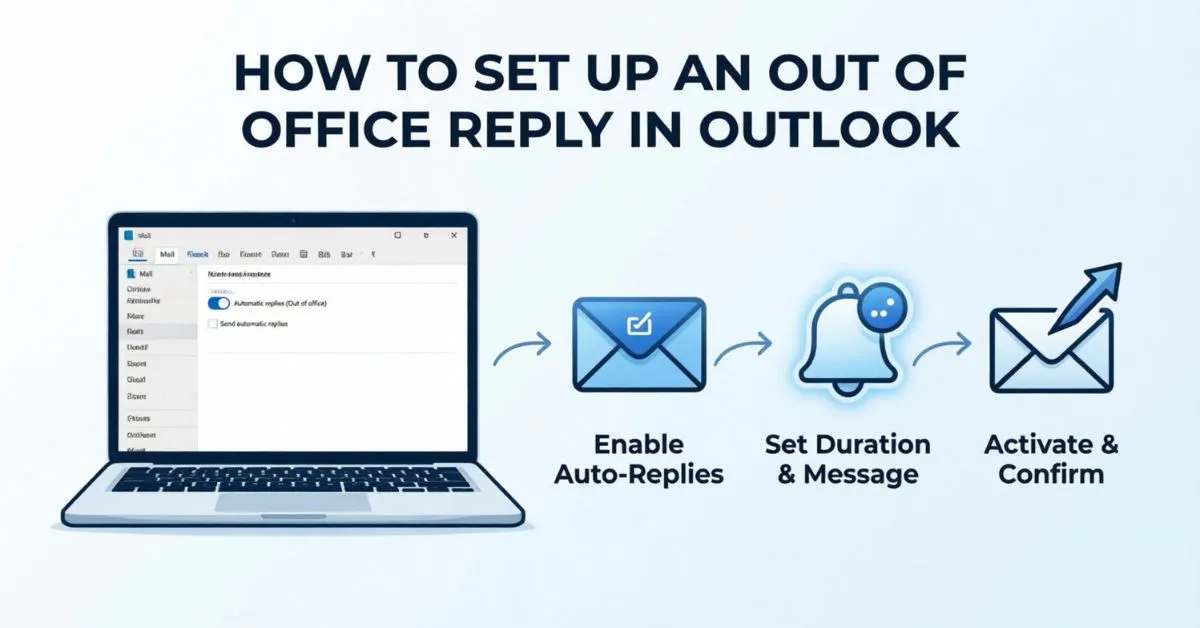
How To Set Up An Out of Office Reply In Outlook was something I searched for when I was preparing for a few days away from work. I remember feeling worried because I knew important emails could arrive while I was gone, and I didn’t want people to think I was ignoring them.
That stress stayed on my mind until I discovered Outlook’s automatic reply feature. I quickly set up an Out of Office message that politely informed anyone who emailed me that I was unavailable and when I would return.
The moment I activated it, I felt relieved because I knew my contacts would receive a professional response even when I wasn’t checking my inbox.
If you’re facing the same situation, I’ve been there too. In this guide, I’ll show you exactly how I handled it and how you can set up your own Out of Office reply in Outlook within minutes.
What Is An Out of Office Reply In Outlook?
An out of office reply, also called an automatic reply, is a feature in Microsoft Outlook that automatically sends a message to people who email you while you’re unavailable.
These messages can include:
- Vacation notifications
- Business travel updates
- Medical leave information
- Holiday closures
- Temporary unavailability notices
Benefits of Using Outlook Automatic Replies
- Keeps contacts informed
- Sets response expectations
- Maintains professionalism
- Reduces follow-up emails
- Improves customer satisfaction
- Supports work-life balance
Why You Should Set Up An Out of Office Reply
Many professionals underestimate the importance of automatic email responses.
Common Situations for Using Automatic Replies
- Vacation leave
- Business trips
- Sick leave
- Maternity or paternity leave
- Public holidays
- Training sessions
- Conferences
- Personal emergencies
When people know you’re unavailable, they are less likely to become frustrated waiting for a response.
How To Set Up An Out of Office Reply In Outlook For Windows
If you use Outlook on a Windows PC, follow these steps.
Step 1: Open Outlook
Launch Microsoft Outlook on your computer.
Step 2: Select File
Click File in the top-left corner.
Step 3: Open Automatic Replies
Select Automatic Replies (Out of Office).
Step 4: Turn On Automatic Replies
Choose:
Send Automatic Replies
Step 5: Set a Time Range
Check:
Only send during this time range
Then select:
- Start date
- Start time
- End date
- End time
Step 6: Write Your Message
In the Inside My Organization tab, enter your message.
Example:
Thank you for your email. I am currently out of the office and will return on July 15. I will respond as soon as possible upon my return.
Step 7: Create an External Reply
Click Outside My Organization.
Enable:
Auto-reply to people outside my organization
Write your external message.
Step 8: Save Changes
Click OK.
Your Outlook out of office reply is now active.
How To Set Up An Out of Office Reply In Outlook Web
Many users access Outlook through a browser.
Follow These Steps
- Sign in to Outlook Web.
- Click the Settings icon.
- Select View all Outlook settings.
- Choose Mail.
- Click Automatic Replies.
- Turn on automatic replies.
- Set your schedule.
- Enter your message.
- Save changes.
This method works well for remote workers and business travelers.
How To Set Up An Out of Office Reply In Outlook For Mac
Mac users can easily configure automatic replies.
Step-by-Step Instructions
- Open Outlook.
- Click Tools.
- Select Automatic Replies.
- Enable automatic replies.
- Set your date range.
- Enter your message.
- Save settings.
Your autoresponder will begin working immediately.
How To Set Up An Out of Office Reply In Outlook Mobile App
Need to manage your email while on the go?
Outlook App Instructions
- Open the Outlook app.
- Tap your profile picture.
- Select Settings.
- Choose your email account.
- Tap Automatic Replies.
- Enable automatic replies.
- Enter your message.
- Save.
This option is perfect when you’re traveling and away from your computer.
Best Out of Office Reply Examples
Creating the right message is important.
Simple Out of Office Message
Subject: Out of Office
Hello,
Thank you for your email. I am currently out of the office and will return on July 15. I will respond to your message as soon as possible after I return.
Thank you.
Vacation Out of Office Message
Hello,
I am currently on vacation and have limited access to email. I will return on July 20 and respond to your email as soon as possible.
For urgent matters, please contact my colleague at support@example.com.
Thank you.
Business Travel Message
Hello,
Thank you for your message. I am attending a business conference and may not be able to respond immediately.
I will return on July 18.
Best regards.
Customer Support Message
Hello,
Thank you for contacting our team.
We are currently unavailable due to a company holiday. Normal operations will resume on July 10.
We appreciate your patience.
What To Include In An Effective Out of Office Reply
A good automatic reply should contain key information.
Include These Elements
Your Availability Status
Clearly explain that you are unavailable.
Return Date
Tell people when you’ll be back.
Alternative Contact
Provide another person or department if necessary.
Professional Tone
Keep your message polite and concise.
Response Expectations
Let senders know when they can expect a reply.
Out of Office Reply Best Practices
Follow these expert tips.
Keep It Short
People don’t want to read long automatic messages.
Avoid Oversharing
You don’t need to explain detailed personal information.
Use Clear Language
Simple communication works best.
Update Contact Information
Ensure backup contacts are correct.
Test Your Reply
Send a test email before leaving.
Common Mistakes To Avoid
Many users make simple mistakes when setting up automatic replies.
Forgetting to Turn It On
Always verify your settings before leaving.
No Return Date
Without a return date, people won’t know when to expect a response.
Missing Backup Contact
Urgent matters may need immediate attention.
Using Unprofessional Language
Maintain a business-friendly tone.
Leaving It Active Too Long
Set an automatic end date whenever possible.
Outlook Automatic Reply vs Email Rules
Some users confuse automatic replies with Outlook rules.
Automatic Replies
- Designed for absences
- Easy to enable
- Works automatically
- Includes scheduling
Email Rules
- More advanced
- Can move messages
- Can forward emails
- Can trigger specific actions
For most users, automatic replies are the best solution.
Troubleshooting Outlook Out of Office Replies
If your automatic replies are not working, try these solutions.
Check Account Type
Some Outlook features depend on whether you use:
- Microsoft 365
- Exchange Server
- Outlook.com
- POP account
- IMAP account
Verify Automatic Replies Are Enabled
Double-check settings.
Confirm Date Settings
Incorrect dates can prevent replies from sending.
Restart Outlook
A quick restart often solves temporary issues.
Contact IT Support
For workplace accounts, your administrator may manage settings.
Featured Snippet: Quick Answer
How Do You Set Up an Out of Office Reply in Outlook?
To set up an out of office reply in Outlook:
- Open Outlook.
- Click File.
- Select Automatic Replies.
- Enable Send Automatic Replies.
- Set your date range.
- Enter your message.
- Click OK.
Outlook will automatically send your response to incoming emails while you’re away.
How Businesses Benefit From Outlook Automatic Replies
Companies use automatic replies to improve communication.
Benefits include:
- Better customer service
- Faster issue routing
- Reduced customer frustration
- Increased professionalism
- Improved workflow management
According to workplace communication studies, clear response expectations significantly improve customer satisfaction and reduce repeat inquiries.
Outlook Out of Office Reply Checklist
Before leaving, make sure you:
- Turn on automatic replies
- Set start and end dates
- Add return date
- Include backup contact
- Test your message
- Update voicemail
- Notify key clients
- Save changes
FAQs:
Q1: How do I set up an out of office reply in Outlook?
Open Outlook, go to File, select Automatic Replies, enable the feature, enter your message, and save your settings.
Q2: Can I schedule automatic replies in Outlook?
Yes. Outlook allows you to schedule start and end dates for automatic replies.
Q3: Will Outlook send automatic replies to everyone?
You can choose whether replies go only to people inside your organization or to external senders as well.
Q4: Can I create different messages for internal and external contacts?
Yes. Outlook lets you customize separate automatic reply messages.
Q5: Why is my Outlook out of office reply not working?
Common causes include disabled settings, incorrect dates, account restrictions, or Exchange server issues.
Q6: Does Outlook send multiple automatic replies to the same person?
Typically, Outlook sends one automatic reply per sender during the active period.
Q7: Can I set up out of office replies from my phone?
Yes. The Outlook mobile app supports automatic replies on both Android and iPhone devices.
Conclusion:
Knowing How To Set Up An Out of Office Reply In Outlook is a simple skill that can make a big difference in your professional communication. If you’re taking a vacation, attending a conference, or stepping away from work for a few days, automatic replies help keep everyone informed and reduce unnecessary follow-ups.
By following the steps in this guide, you can quickly create professional automatic responses across Outlook for Windows, Mac, Web, and Mobile. Remember to include your return date, provide an alternative contact when needed, and keep your message clear and concise.

Olivia Smith is a professional author at ReplyGenius.com, where I create clear and engaging content on communication and writing.